Tag: ai in business

  • 12 Best AI Prospecting Tools for Small Sales Teams

    12 Best AI Prospecting Tools for Small Sales Teams

    AI In Business12 Best AI Prospecting Tools for Small Sales Teams

    The short answer

    The best AI prospecting tools for small sales teams are the ones that combine accurate contact data, simple outreach workflows and a price that fits a small team. Strong options include Apollo.io, Lusha and Instantly.ai, each suited to a different mix of data needs and outreach volume. Choose by team size, budget and whether you need a full sales platform or a focused tool, and test data quality on your own target market during any trial.

    If you run a small sales team, you already know that finding good prospects takes more time than most people expect. This guide covers 12 best AI prospecting tools for small sales teams, selected for contact data quality, ease of setup and pricing that a team of a few reps can justify.

    This guide is based on published specifications, vendors' own claims (which we attribute to them) and what buyers commonly report, not on our own testing.

    Every tool on the list had to offer contact or company data, some form of AI assistance for finding or ranking prospects, and a plan or trial a small team could realistically start with. We left out tools aimed mainly at large enterprises.

    Let's dive in.
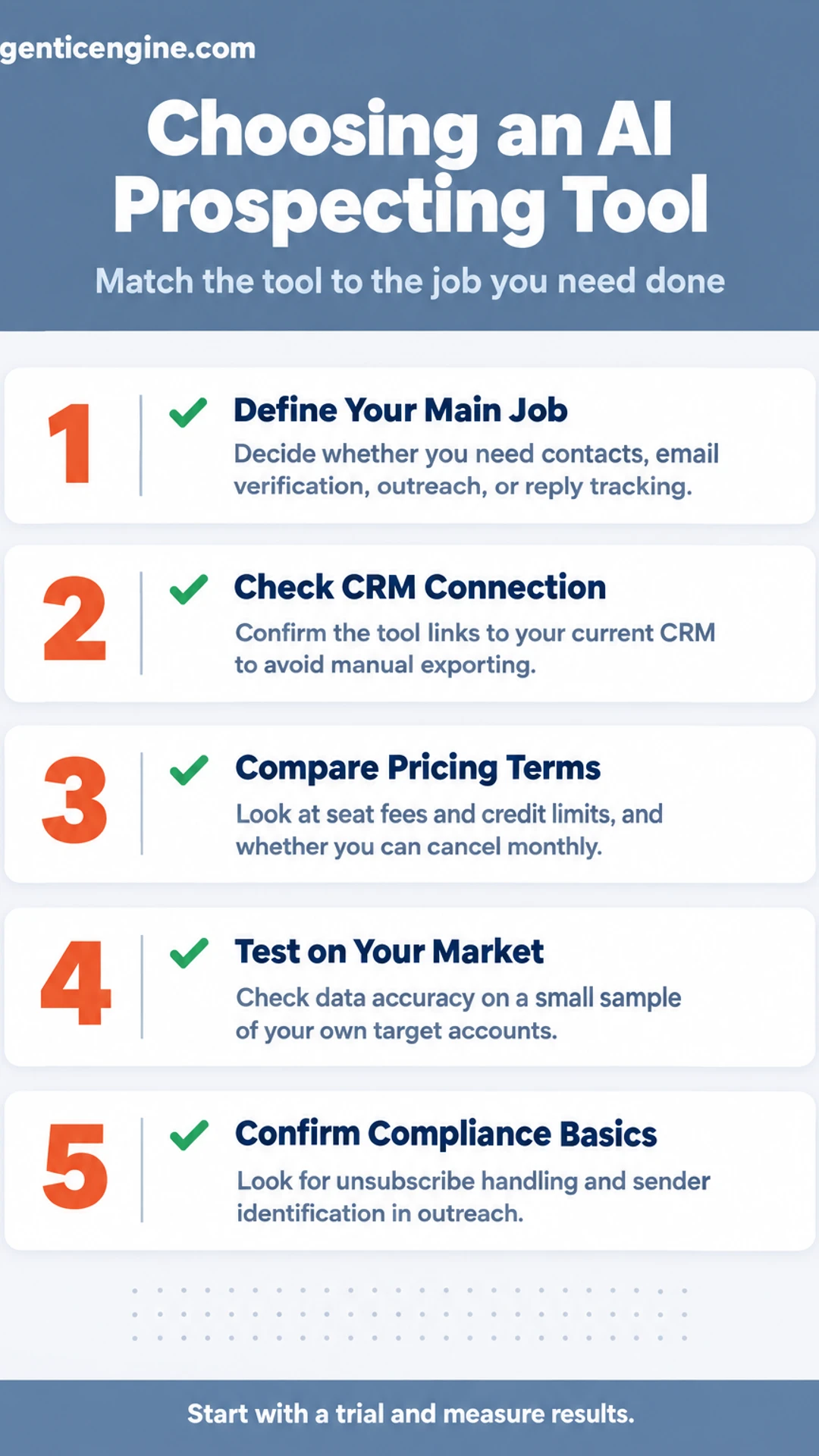
    Listicle infographic: Choosing an AI Prospecting Tool. Match the tool to the job you need done. 1. Define Your Main Job; 2. Check CRM Connection; 3. Compare Pricing Terms; 4. Test on Your Market; 5. Confirm Compliance Basics.

    AI prospecting tools at a glance

    Option Best for Key feature Price as stated
    Apollo.io Small teams starting out Contact database with sequencing and dialer Free tier with limited monthly credits
    Lusha Solo sellers or two-person teams Browser extension for verified contacts Not stated
    Instantly.ai High-volume outbound campaigns Unlimited sending accounts and email warm-up Not stated
    ZoomInfo Mid-market teams needing deep intelligence Intent signals and org charts Annual contract priced by seat and data volume
    LinkedIn Sales Navigator Relationship-driven selling Advanced LinkedIn filters and activity alerts Not stated
    Cognism Teams selling into Europe or regulated markets Phone-verified data focused on compliance Not stated
    LeadIQ Manual prospect research Captures contacts while researching Not stated
    Clay Teams with specific targeting rules Combines many data sources into custom lists Not stated

    AI in Business Calculator: Hours Your Practice Could Reclaim Each Week

    A closer look at each

    1. Apollo.io: A widely known all-in-one platform that many small sales teams start with, combining a large contact database, email sequencing and a built-in dialer in one tool. Its free tier allows a limited number of monthly credits, which makes it a sensible way for a team to test its data quality before committing to a paid plan.

    2. Lusha: A lightweight way to find verified business contact details quickly, usually through a browser extension that works alongside LinkedIn and your CRM. It suits a solo seller or a two-person team that needs a few verified emails and phone numbers per day rather than a full prospecting suite with heavy setup.

    3. Instantly.ai: A cold email platform built for teams running high-volume outbound campaigns, with features such as unlimited sending accounts, email warm-up and campaign rotation. It is best for teams whose main job is outreach at scale, since it does less of the contact-finding work that tools like Apollo or Lusha handle.

    4. ZoomInfo: A large data platform that many mid-market teams use for deep company and contact intelligence, including intent signals and org charts. Its contracts are typically annual and priced by seat and data volume, so a small team should compare the quoted terms carefully and confirm which features are included before signing.

    5. LinkedIn Sales Navigator: The standard tool for searching and tracking people on LinkedIn, with advanced filters for role, company size, region and recent activity. It is most useful for relationship-driven selling, where a rep wants to see when a prospect changes jobs or posts something relevant and then reach out with context.

    6. Cognism: A data provider that emphasises compliance and phone-verified contact data, with a focus on regional rules such as GDPR and Do Not Call lists. Teams selling into Europe or heavily regulated markets often choose it because its data is positioned around consent and verification, though buyers should confirm current coverage for their specific territories.

    7. LeadIQ: LeadIQ is built to capture contact data while your team researches, so you are not copying names and emails between tabs. It works as a browser extension alongside LinkedIn and pushes details into a CRM or spreadsheet. Best suited to a small sales team doing manual prospect research who wants a tidy, organised lead list without extra data-entry time.

    8. Clay: Clay pulls prospect data from many sources and lets you combine them into one custom list, with filters and enrichment steps you set up yourself. Its flexibility suits teams with specific targeting rules, such as a list of mid-sized logistics firms in a named region. It has a learning curve, so plan a short setup period before relying on it.

    9. Seamless.ai: Seamless.ai is a search tool for finding contacts by role, company and industry. The vendor claims its data updates in real time, but that is a vendor claim, and buyers commonly recommend verifying emails before a campaign. Useful for a small team building fresh lists quickly, provided each contact is checked before outreach.

    10. Reply.io: Reply.io runs multi-step outreach sequences that combine email and LinkedIn touches, with AI features for drafting messages. You can schedule follow-ups so each prospect gets a consistent, timed series. A good fit for a team that wants one platform handling email and LinkedIn contact without juggling separate tools.

    11. Salesforce Sales Cloud: Sales Cloud is a full CRM with prospecting features, including lead management and sales workflows. It makes the most sense for teams already invested in Salesforce, where lead data, reporting and integrations already live. For a team starting fresh, the setup and licensing cost can outweigh the prospecting benefit.

    12. HubSpot Sales Hub: HubSpot Sales Hub is a CRM-first option that includes prospecting tools and email sequences, with a free tier available. Its free plan lets a small team test contact tracking and basic outreach before paying for more. A practical choice for teams that want the CRM and outreach in one place and plan to grow into paid features later.

    Frequently asked questions

    What should a small sales team look for in an AI prospecting tool?

    Start with the job you need done: finding contacts, verifying email addresses, writing outreach, or tracking replies. Check that the tool connects to the CRM you already use, because manual exporting wipes out much of the time saved. Look at how many seats are priced in, and whether you can cancel monthly or are locked into an annual contract.

    Are AI prospecting tools accurate enough to replace manual research?

    They usually cut the first pass of research, not the judgment behind it. Contact data goes stale, job titles change, and AI-written messages can sound generic. Vendors commonly claim high accuracy, so check those claims against a small sample of your own target accounts before committing a full budget.

    How much do AI prospecting tools typically cost for a small team?

    Pricing varies widely and vendors change it often, so confirm the current figures on each vendor's pricing page. Many charge per user per month, and some add credit-based fees for contact lookups or emails sent. Factor in those usage limits, not just the headline seat price.

    Do I need technical skills to set up an AI prospecting tool?

    Most tools are built for sales staff rather than developers, and basic setup is usually a matter of connecting your email and CRM and defining your ideal customer profile. Expect a few hours of configuration and a short trial period to tune targeting. Tools that require custom integrations take more time and may need outside help.

    How do I know whether an AI prospecting tool is compliant with email rules?

    Check whether the tool includes unsubscribe handling, sender identification, and opt-out tracking, since these are the basics of commercial email rules such as the CAN-SPAM Act in the United States. Ask the vendor how it sources contact data and whether it respects regional privacy laws. Compliance remains your responsibility, so review the vendor's documentation and confirm with your own advisor if you are unsure.

    Wrapping up

    Twelve tools, one decision. You now have a clear list of twelve options to compare.

    Match the tool to the job you need done first, whether that is finding contacts, writing outreach, or tracking replies.

    Which one will you try first? Or is there a tool you think I missed?

    Share this: X · LinkedIn · Facebook
    Summarize with AI: ChatGPT · Claude · Perplexity


  • 12 Best AI Reporting Tools for Automating Business Reports

    12 Best AI Reporting Tools for Automating Business Reports

    AI In Business12 Best AI Reporting Tools for Automating Business Reports

    The short answer

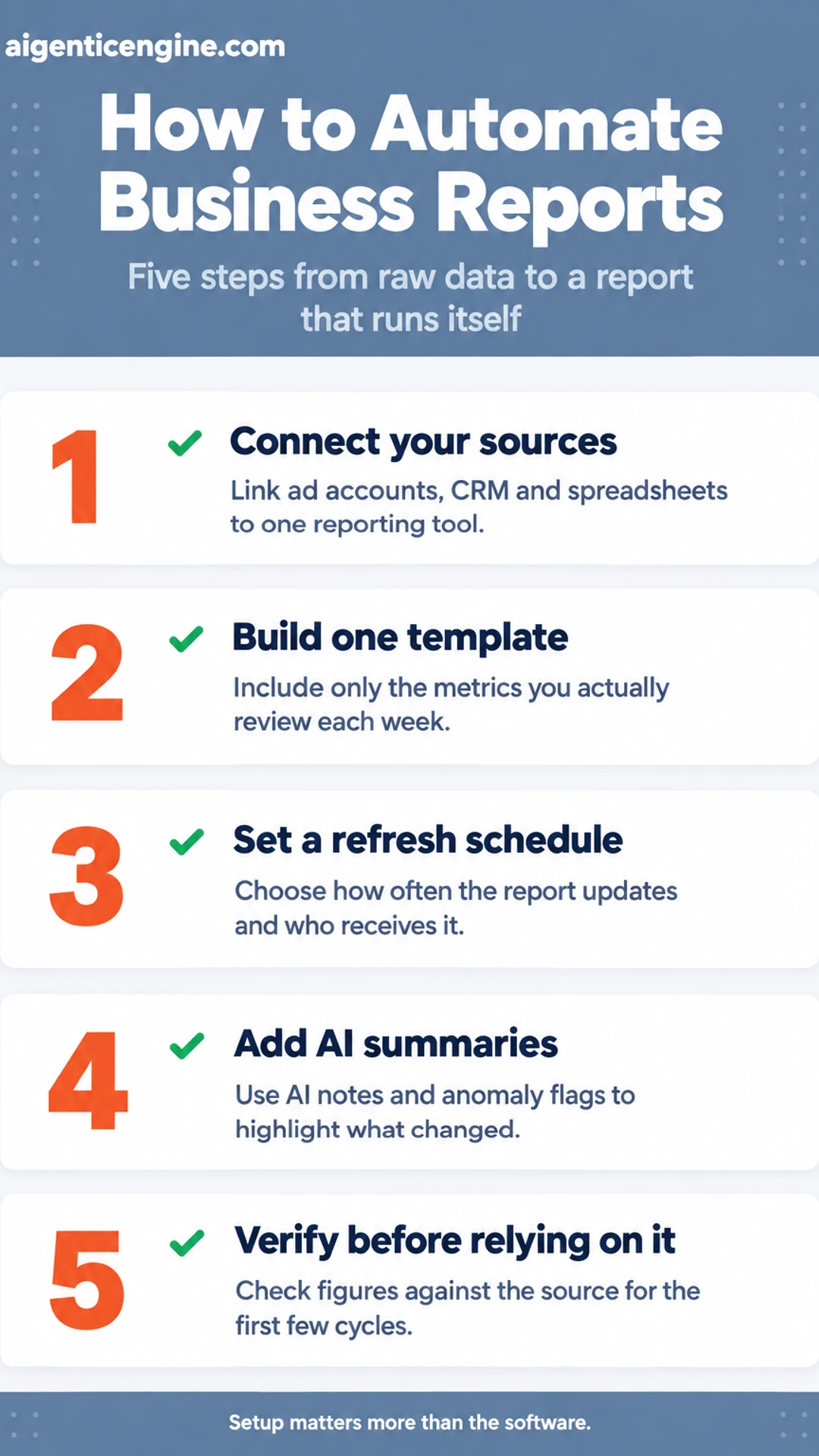
    To automate business reports with AI, connect your data sources (ad accounts, CRM, spreadsheets) to a reporting tool, build one template with the metrics you actually review, set a refresh schedule, and add AI summaries or anomaly flags on top. Check the numbers against the source for the first few cycles before you rely on them.

    Most of the work is in the setup, not the software. When you pick the right tool and wire it to the systems you already use, the weekly report stops being a Friday chore and arrives on its own.

    This list covers 12 AI reporting tools that can automate business reports. Each entry was chosen for what it does well for owners, small teams and agencies: connectors, scheduling, and whether the AI features help you spot problems or simply decorate charts.

    This guide is based on published specifications and what buyers report, not our own testing. Treat vendor claims as claims and verify them yourself.

    Along the way, you will see how this fits into the rest of our AI in business hub, including our guides on how to start using AI in your business in 30 days and how AI can automate routine operations tasks.

    Let's dive in.

    Listicle infographic: How to Automate Business Reports. Five steps from raw data to a report that runs itself. 1. Connect your sources; 2. Build one template; 3. Set a refresh schedule; 4. Add AI summaries; 5. Verify before relying on it.

    The 12 tools at a glance

    Tool Best for Pricing noted in article
    Looker Studio Small teams on Google platforms Free connectors
    Improvado Large marketing teams, many channels Quote-based
    Whatagraph Marketing agencies with branded reports Not stated
    AgencyAnalytics Agencies with client portals Not stated
    Supermetrics Teams feeding Sheets or BI tools Not stated
    HubSpot reporting Teams already in HubSpot CRM Not stated
    Funnel.io Multi-channel campaigns needing clean data Not stated
    Polymer Owners with single spreadsheet files Not stated

    Hiring vs Automating Cost Calculator

    AI in Business Calculator: Which Workflows to Automate First

    A closer look at each

    1. Looker Studio: A free Google tool for building dashboards that pull from Google Analytics, Google Ads, Search Console and Google Sheets. Its built-in connectors are free, so a small team can set up a live campaign report in an afternoon without paying for a reporting platform. Scheduled email delivery is available, though it suits simpler layouts than the paid options below.

    2. Improvado: A data integration platform aimed at larger marketing teams that pull from many advertising, analytics and CRM sources at once. It maps and cleans that data into one model before reporting, which is why it suits companies running campaigns across a dozen channels. Pricing is quote-based, so expect a sales conversation rather than a published rate card.

    3. Whatagraph: A reporting tool built for marketing agencies that need polished, branded reports for each client. Templates, white-label output and automated scheduled sends cut the hours spent copying charts into slides. Check which data connectors your current clients use before committing, since coverage varies by platform.

    4. AgencyAnalytics: Agency reporting software that combines client dashboards, automated reports and a white-label client portal in one place. Clients can log in to check campaign performance any time, which often reduces the number of "how is my campaign doing?" emails an account manager receives each week. Confirm the plan includes the integrations you rely on.

    5. Supermetrics: A data connector rather than a full dashboard tool, designed to move marketing and sales data into Google Sheets, Excel, Looker Studio or a data warehouse. It is a good fit when your team already has spreadsheet or BI habits and mainly needs clean, refreshed data delivered on a schedule. It does not replace the visual layer, so budget for whatever tool displays the results.

    6. HubSpot reporting: Built-in reporting inside HubSpot CRM, covering deal pipeline, lead sources, email performance and campaign results. Because the data already sits in the CRM, there is no connector to maintain and no sync to break. Its limits show up when you need to combine HubSpot data with ad platform or finance data, which usually means adding an outside tool.

    7. Funnel.io: Funnel.io pulls data from advertising platforms, analytics tools and CRMs into one place, then cleans and standardizes it before any report is built. Its published materials describe connectors for many common marketing sources, so a team running a campaign across several channels can reconcile naming and currency issues upstream. Clean inputs are what keep automated reports from carrying errors forward.

    8. Polymer: Polymer lets you upload a spreadsheet or CSV file and produce visual dashboards with little setup, which suits an owner who already keeps records in Excel or Google Sheets. Its vendor materials emphasize drag-and-drop charts and sharing links. It works best for one-off or periodic reports from a single file, rather than live feeds across many systems.

    9. Zapier-based workflows: This is the do-it-yourself route, where you connect your own tools with Zapier and have it move information, such as new form entries or closed deals, into a spreadsheet that feeds a report. Zapier's published pricing is tiered by task volume, so check current plans before committing. You trade convenience for control, and you own every connection you build.

    10. Scheduled AI summary tools: These products read a report's figures on a schedule and write a plain-language note describing what changed, such as "spend rose while conversions fell." Vendors often describe this as saving reading time for busy owners. A summary is only as reliable as the numbers beneath it, so confirm the underlying data before acting on the narrative.

    11. Choosing by business stage: A solo owner with one sales channel usually needs a spreadsheet plus a simple visual tool like Polymer. A growing team with several platforms benefits from a connector tool like Funnel.io. Agencies managing many client accounts should prioritize tools that handle multiple workspaces and permissions, and a Zapier build suits owners with some technical comfort.

    12. What to check before you trust a report: Before acting on any automated report, confirm the date range, compare one total against its source platform, check that currency and time zones match, and look for duplicate or missing rows. Ask who maintains each connection and how failures are flagged. A report that skips these checks can look polished while quietly misstating performance.

    Frequently asked questions

    Can AI really write a business report without someone checking it?

    Not safely, at least not yet for anything that goes to a client, lender or board. AI reporting tools are good at pulling figures, building charts and drafting summaries, but they can misread a column or mislabel a category. Treat the output as a strong first draft and check the totals and any figure that drives a decision before it leaves your desk.

    What data do I need before I can automate a business report with AI?

    You need a source the tool can reach and a consistent structure. That usually means exports or live connections from your accounting software, CRM, ad platforms or spreadsheets, plus clear column names and date ranges. If the same metric is named three different ways across systems, fix that first. Clean, consistent inputs matter more than which tool you choose.

    How long does it take to set up an automated AI report?

    For a simple weekly sales or marketing summary connected to one or two sources, a first version often takes an afternoon to a few days, mostly spent on connections and defining the metrics. More complex reports with multiple sources, custom formulas or approval steps can take several weeks. Expect the first month to involve some tuning as you refine what the report needs to say.

    Are AI reporting tools secure enough for sensitive financial data?

    It depends on the vendor and your settings. Check whether the tool encrypts data in transit and at rest, whether it offers role-based access, and whether it states that your data is not used to train shared models. Review the vendor's published security documentation and ask your accountant or IT contact to look at it before you connect payroll or banking data.

    Will automating reports with AI replace the person who builds them?

    In most small businesses it changes the job rather than removing it. The routine work of gathering exports, formatting tables and drafting first-pass commentary shrinks, while the person still decides which numbers matter, questions anomalies and explains what to do next. Plan for that shift so the time saved goes toward analysis rather than simply disappearing.

    Wrapping up

    We covered 12 options for automating business reports with AI, each suited to a different kind of team and data setup.

    The right choice depends on where your numbers live and who needs to read them.

    Before you commit, check the data connections, the security terms and the true cost at your volume.

    Which of the 12 are you going to try first, and did we leave out a tool you rely on?

    Share this: X · LinkedIn · Facebook
    Summarize with AI: ChatGPT · Claude · Perplexity


  • How to Start Using AI in Your Business: Six Steps to a First Result in 30 Days

    How to Start Using AI in Your Business: Six Steps to a First Result in 30 Days

    AI In BusinessHow to Start Using AI in Your Business: Six Steps to a First Result in 30 Days

    The short answer

    To start using AI in your business, pick one repetitive task that costs time, such as drafting emails or summarizing customer messages. Choose a general-purpose AI assistant or a tool built for that task, set a clear success measure, and run a small pilot for about two to four weeks. Check every output, keep sensitive data out of tools you have not vetted, and expand only when the result holds up.

    The short version: To start using AI in your business, pick one repetitive task that takes up too much of your time, choose a tool that can handle it, set a clear way to judge the result, and run a short pilot to test it. This guide walks you through that process over 30 days, from choosing the task to deciding whether to expand.

    You will finish with one working AI workflow and a written record of what it saved, what it got wrong, and what you would change. Most owners already complain about the same work: drafting replies, summarizing customer messages, and pulling together a weekly update. Those tasks are repetitive, easy to check, and low-risk to try first.

    Each step is short and gives you something to do the same day. You will see where to look for your first task, how to compare tools on published specifications and vendor claims, and how to set a measure you can check against real output.

    This guide is based on published specifications and what buyers report, not our own testing.

    Quick steps:

    1. Pick one task and define what success looks like
    2. Set your data and usage rules
    3. Choose a tool that fits the task
    4. Run a two-week pilot with a human check
    5. Measure the result and decide
    6. Expand carefully into a second process
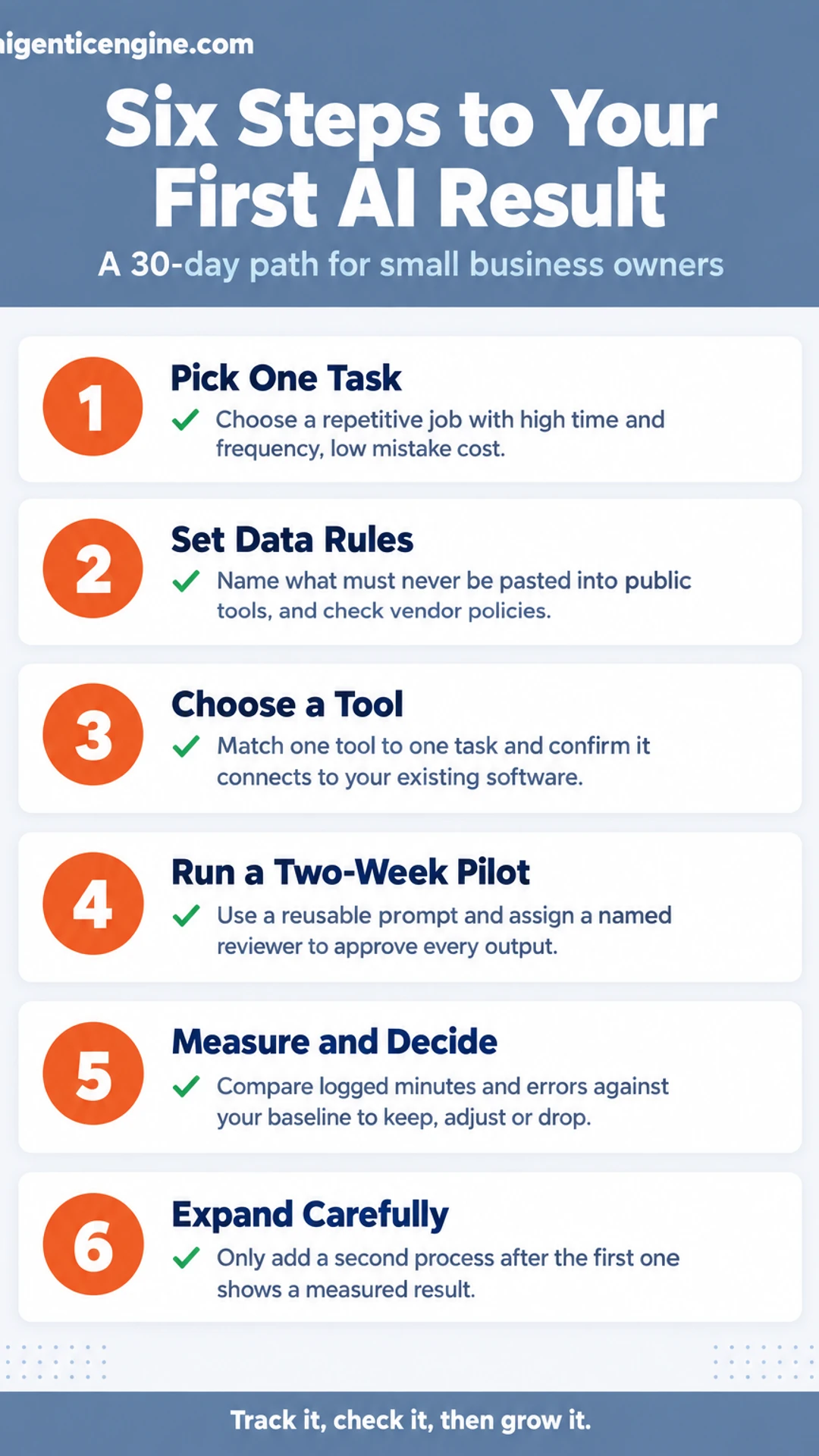
    How-to infographic: Six Steps to Your First AI Result. A 30-day path for small business owners. 1. Pick One Task; 2. Set Data Rules; 3. Choose a Tool; 4. Run a Two-Week Pilot; 5. Measure and Decide; 6. Expand Carefully.

    Missed Call Revenue Leak Calculator

    Step 1: Pick one task and define what success looks like

    Start by listing the work that quietly drains your week. Most businesses have a handful of repetitive tasks that feel small but add up: scheduling meetings, writing first drafts of emails or social posts, copying figures between spreadsheets, or answering the same customer questions again and again. Write down every one you can think of. Aim for at least ten.

    Next, score each task on three things, from 1 (low) to 5 (high):

    • Time spent: How many hours a week does it take?
    • Frequency: How often does it happen?
    • Cost of a mistake: How much damage does a wrong result cause?

    Add the first two scores and subtract the third. The best pilot is high on time and frequency, and low on mistake cost. A task you can check easily and fix quickly makes a safer first experiment than anything touching payroll or legal terms.

    For example, a small bookkeeping firm might list "answering the same tax-deadline questions by email." It takes about 4 hours a week, happens daily, and a slightly off reply is easy to correct. That beats "preparing client tax filings," which is slow to check and expensive to get wrong.

    Pick the top-scoring task. Then write one measure of success before you start. Keep it simple and countable:

    • Minutes saved per week
    • Average response time to customers
    • Number of drafts you finish per day

    Write it on paper or in a doc, with a baseline number. For the email example: "Current average reply time is 6 hours. Goal: under 1 hour within 30 days."

    [screenshot: a simple spreadsheet with columns for task, time per week, frequency, mistake cost and total score]

    Choosing a pilot task

    Task type Why it works Why it may not
    Email drafts and replies Frequent, easy to check Tone errors reach customers
    Summarizing notes Repetitive, low risk Missed details if unchecked
    Tax or legal filings Not stated Slow to check, costly to get wrong

    Step 2: Set your data and usage rules

    Before anyone on your team opens an AI app, decide what information is allowed to go into it. This takes about an hour, and it protects your customers and your business from avoidable mistakes.

    Start with a short "never paste" list. Write down the categories of information that stay out of public tools. A practical starting list:

    • Customer personal details, such as names tied to contact info, addresses, payment details or account numbers
    • Passwords, API keys and login credentials
    • Unreleased financials, pricing plans and board materials
    • Signed contracts and any document marked confidential

    Pin this list where your team will see it, such as your shared drive or your onboarding document.

    Check each vendor's data policy before signing up. Look for the terms about data retention and model training. Search the vendor's site for "data retention," "training" or "privacy." Note three things: whether your inputs are used to train the model, how long they are kept, and whether you can turn off training in settings. Then compare the free tier with the paid plan, since free versions often allow training on your inputs while business plans commonly do not. Vendors change these terms, so recheck them every few months.

    Decide who approves new tools. Name one person, often the owner or an operations lead, who signs off before any staff member adopts a new tool. Give that person a simple request form with the tool name, its purpose, the data it will touch and the policy you checked. Approval can take a day. It keeps your data rules from being bypassed one sign-up at a time.

    [screenshot: a sample one-page data rules sheet with the never-paste list, the approved tools table and the approver's name]

    Step 3: Choose a tool that fits the task

    Start by narrowing your list. Pick one job you want help with first, then match it to one or two tools. Testing ten products at once wastes time and makes results hard to judge.

    Option A: Start with a general AI assistant. For drafting, summarizing and brainstorming, a general assistant is usually the easiest place to start. Tools such as ChatGPT, Claude and Gemini each offer free or low-cost tiers, so you can test without a subscription. Check each vendor's pricing page for current limits, since they change often.

    Option B: Match a specialist app to a specific job. If your goal is email follow-up or scheduling, compare apps built for that purpose:

    • Open each vendor's published feature list.
    • Look for the exact action you need, such as sending sequences or booking meetings.
    • Note any usage caps, seat limits and setup requirements.

    Confirm integrations before you commit. An app that cannot connect to your existing software creates copy-and-paste work, which cancels out the time you hoped to save. Make a short checklist:

    • Does it connect to your email, CRM or spreadsheets?
    • Is that connection included in your plan, or is it an add-on?
    • Does the vendor list the integration on its own site?

    Example: A small consulting firm wants faster follow-up on inbound inquiries. It lists its email provider and CRM, then checks three specialist apps against that list. Only one lists both connections on its public integrations page, and its cost includes them, so that app moves to the test shortlist.

    [screenshot: a vendor's integrations page with the email and CRM connections highlighted]

    Keep the test small. Choose one app, run it on one task for two weeks, and record how much time it saves your team.

    Where to start with an AI tool

    Approach Best for How to start
    General AI assistant Drafting, summarizing, brainstorming Test free or low-cost tier
    Specialist app Email follow-up, scheduling Compare published feature lists

    Step 4: Run a two-week pilot with a human check

    Now you test your chosen tool on a real task from your business. The goal is a working result you can judge, not a perfect one. Keep a person responsible for every output, and track what happens so the decision at the end rests on evidence.

    What you need:

    • One recurring task, such as drafting customer email replies, summarizing call notes, or writing product descriptions
    • A named reviewer who checks each output before it reaches a customer or informs a decision
    • A simple log, either a spreadsheet or a notebook

    How to run it:

    1. Write a reusable prompt template. Use the same structure every time: role, task, input, and output format. For example: "You are a support assistant for a small bakery. Draft a reply to the customer message below. Keep it under 80 words, and flag anything about refunds for review. Message: [paste message]."
    2. Assign one reviewer. Put a specific name next to every output. That person reads it, edits it if needed, and approves it. Nothing goes out unreviewed.
    3. Log each day. Record minutes spent, number of outputs, number approved as-is, number edited, and any errors.

    [screenshot: a spreadsheet with columns for date, task, minutes spent, outputs approved, outputs edited, and errors]

    At the end of two weeks, compare total minutes against your old process. That gap, plus your error count, tells you whether to keep, adjust, or drop the tool.

    Step 5: Measure the result and decide

    Open the log you started in Step 1. Your baseline is the reference point for this whole decision, so pull it up before you look at anything from the last few weeks.

    Gather three numbers for the workflow you piloted:

    • Logged time: total minutes spent on the task each week, using the same method you used for the baseline.
    • Error count: how many outputs needed correction, rework or a resend.
    • Output volume: how many units you completed, such as emails sent, records updated or reports produced.

    Put the baseline and the pilot side by side in a simple table. For example, if your team spent 90 minutes a week drafting customer follow-up emails and made 6 errors, and the pilot shows 40 minutes and 4 errors, you have a clear, measurable answer.

    Then choose one of three paths:

    • Keep: The time saving holds and errors are manageable. Write the workflow down as a repeatable process: the exact prompt, the tool, who reviews the output and what a good result looks like. Assign an owner.
    • Adjust: The result is close but not there. Change the prompt or tool once, run the workflow for another week and measure again.
    • Stop: The result is still weak after that one adjustment. Record why in your log and move on to a different task.

    Be honest with yourself here. Stopping a pilot that did not pay off is a successful outcome of the 30 days, because you now know where AI does not help your business.

    Step 6: Expand carefully into a second process

    Once your first AI task produces a result you trust, resist the urge to pick the most exciting idea on your list. Pick the next task from your scored list instead, and ideally choose one in the same department. Sales can reuse the lead-intake rules you already wrote. Marketing can reuse the content templates and the approval step. Each reuse saves time and keeps your approach consistent.

    Here is how to do it:

    1. Open your scored list and filter for tasks in the same department as your first win.
    2. Check what you can reuse. Look at your written data rules, prompt templates, and review checklist. Note which ones fit the new task without changes.
    3. Run a small pilot. Apply the same six-step method to the new task, limited to one week or a handful of records.
    4. Compare the result to the old process. Measure time spent and error rate, the same way you did for step one.

    For example, a small agency that used ChatGPT to draft client email replies can expand carefully by using the same tone guide and approval step to draft onboarding emails for new customers. The rules carry over, so the second task takes days rather than weeks.

    Then set a monthly review. Block 30 minutes on the calendar and check four things:

    • Tools: which ones you use, and whether each still earns its place
    • Costs: subscription and usage fees against the time they save
    • Data rules: whether anyone broke them, and whether they still fit
    • Outcomes: the results you measured for each task

    Finally, train your team on the written rules. Walk through the rules in one short session, have each person run one task, and store the document where everyone can find it. That way the approach outlasts the person who started it.

    What to do now

    • ☐ Pick one task and score it for time spent, frequency and mistake cost
    • ☐ Write one measure of success with a baseline number before you start
    • ☐ Write a never-paste list of information that stays out of AI tools
    • ☐ Check each vendor's data policy on retention and model training
    • ☐ Name one person who approves new AI tools before staff adopt them
    • ☐ Shortlist one or two tools and confirm they connect to your existing software
    • ☐ Run a two-week pilot with a reusable prompt and a named human reviewer
    • ☐ Log minutes, outputs and errors daily, then compare the pilot to your baseline

    Frequently asked questions

    How can AI help business?

    AI helps most with repetitive, text-heavy or pattern-based work: drafting emails, sorting incoming requests, summarizing calls, pulling figures into reports and flagging unusual numbers. The gain is usually time back for people, faster response to customers and fewer manual errors. It works best when a specific task is clear and someone reviews the output before it reaches a customer.

    What is the 10/20-70 rule for AI?

    The 10/20-70 rule is a guideline that splits AI effort across three areas: about 10 percent on the algorithms, 20 percent on the technology and data, and 70 percent on people and process changes. The idea is that most AI projects stall because of workflow and adoption problems rather than the model itself. For a small business, it is a reminder to plan how the team will use the tool, not just which tool to buy.

    What are 5 benefits of AI?

    Five common benefits are time savings on routine tasks, faster responses to customers, more consistent output, better use of existing data for decisions, and the ability to handle more volume without adding headcount at the same rate. None of these is automatic. Each depends on picking a specific task, measuring the before and after, and checking that the output meets your standard.

    How to use AI to make $10,000 a month?

    No AI method guarantees a fixed income, and any promise of a set monthly figure should be treated with caution. A more reliable approach is to pick one service or product, use AI to shorten a costly part of delivering it, and track whether that cuts your costs or lifts your sales. Revenue then grows from real demand you can measure, not from a promised number.

    How long does it take to start using AI in a business?

    Many small businesses can run a first, limited test within a few days and judge the result within about 30 days. The timeline depends on how clearly the task is defined and how much review the output needs. A narrow starting point, such as drafting one type of routine email, is far quicker to evaluate than a company-wide rollout.

    Conclusion

    Every method in this guide starts with one small task, so the first step is simply choosing it.

    Look at your week and find the task that eats the most time without needing much judgment.

    Decide whether you will begin with the task definition, the test run or the review step.

    Whichever you pick first, write down the current time it takes so you can measure the change.

    Share this: X · LinkedIn · Facebook
    Summarize with AI: ChatGPT · Claude · Perplexity